for trainers
Set Up LIFT Coach
LIFT Coach collects the training and eating your clients send from LIFT and lays it out as a roster you can read on a Monday morning — who trained, who ate to their numbers, and who has gone quiet. It's free, and there's no account to make.
You can use it right now in a browser tab at dugcanlift.com/coach without installing anything. Installing it just gives you an icon to tap and lets it open full screen and work offline.
On a computer
Probably where you'll actually read this — a roster is easier on a big screen. Works in Chrome or Edge.
- Go to dugcanlift.com/coach
- Look at the right-hand end of the address bar for the install icon — a small monitor with a downward arrow
- Click it, then click Install
If you don't see the icon, open the ⋮ menu in the top right, then Cast, save and share → Install page as app. Safari on Mac can do the same from File → Add to Dock.
On iPhone or iPad
This only works in Safari — if you normally use Chrome, open Safari instead just for this one step.
- Open Safari and go to dugcanlift.com/coach
- Tap the Share button — the square with an arrow pointing up, at the bottom of the screen (top of the screen on iPad)
- Scroll down the list that pops up and tap Add to Home Screen
- Tap Add in the top right corner
A native iPhone app
There's a Coach built as a real iPhone app too. You can't install it. It's signed with a free Apple developer account, which runs it on a phone wired to the Mac that built it and nowhere else — no App Store build, no TestFlight, nothing to send you. It's written up here because it exists, not as an offer. No date on it.
What it does today:
- The same roster, flagging anyone who hasn't logged for seven days or more
- The same charts — training volume, calories against goal, bodyweight, estimated one-rep max per lift — and the session log down to the individual set
- A Cook tab: recipes, a week of meals built for one client, and the shopping list that falls out of it
- A Train tab: workout templates put on days and sent back to that client's LIFT as a plan link
- Its own Save Backup and Restore from Backup, and it reads a backup from the browser version to bring your recipes and workouts across
Getting a client's log into it is a paste, not a tap. The signing it uses can't claim dugcanlift.com links the way the Android app tries to, so tapping the button in their email opens the browser version instead — open the email, copy the link out of it, and paste it into Coach's Paste a Link.
On Android
- Open Chrome and go to dugcanlift.com/coach
- Tap the ⋮ menu (three dots stacked vertically) in the top right
- Tap Install app (some phones say Add to Home screen instead)
- Tap Install to confirm
A Coach icon shows up alongside your other apps. It's the fire cross with COACH across it — LIFT's says LIFT, so you can tell them apart if you run both.
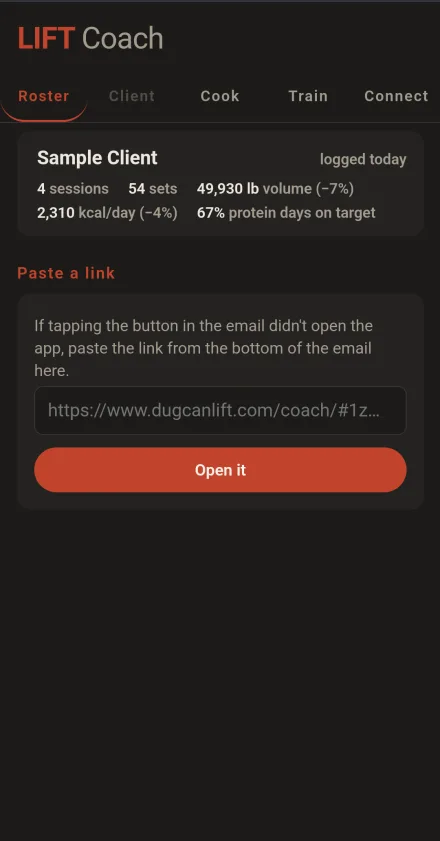
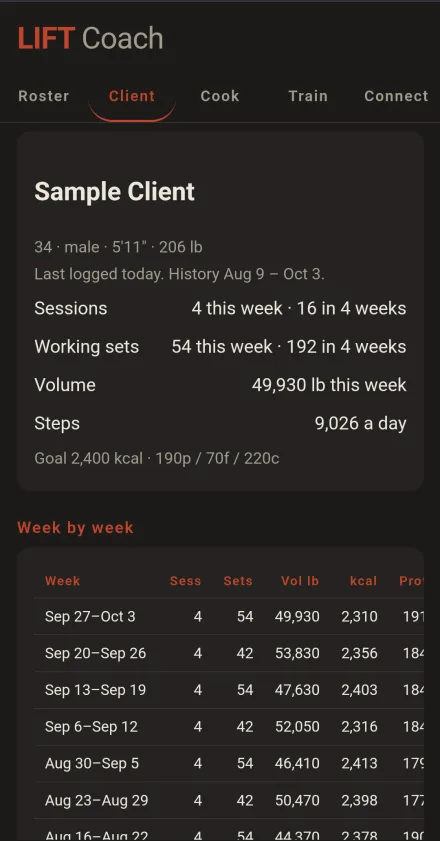
Those two are a phone. Coach is mostly a laptop tool though — the week-by-week table is the reason:
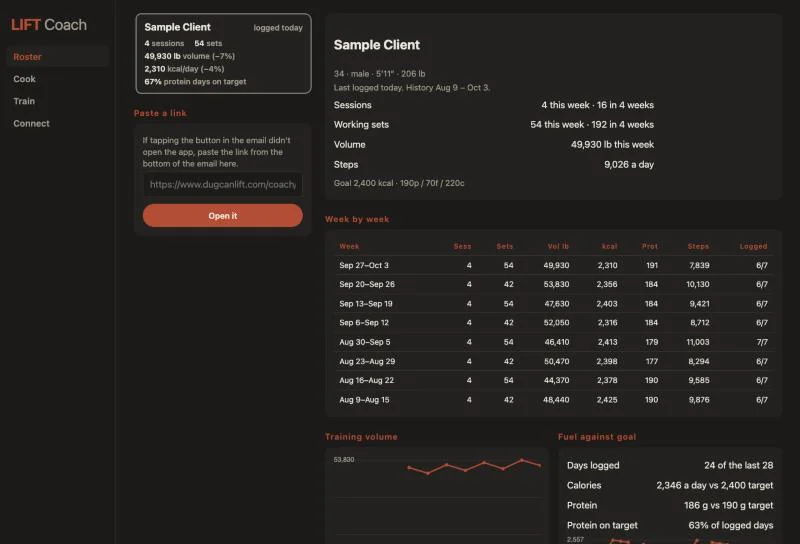
Eight weeks of a client on one screen, which is the view a phone can’t really give you.
A native Android app
There is now a Coach built as a real Android app rather than a web page in a tab — same roster, same numbers, no browser around it. You can install it. It's signed with the same kind of key LIFT uses, and the fingerprint is published in this site's App Links file, which is what lets a client's link open straight into it.
Not on the Play Store, so it installs the same way LIFT for Android does — a couple of extra taps the first time.
- On your phone, tap Download Coach for Android. Chrome asks whether you really want a file it can’t vet — tap Download anyway
- Open the downloaded file. Android says it isn’t allowed to install unknown apps from this source — tap Settings, turn on Allow from this source, then go back and open the file again
- Tap Install, then Open
The screenshots on the LIFT install page show those screens if you want to see them first — it's the same four.
The download comes straight from the latest Coach release on GitHub, which also lists what changed and a SHA-256 checksum for the file.
What it does today:
- Takes a client's link by pasting it in, or by sharing it into Coach from whatever app it arrived in
- Opens on the roster sorted quietest first, with a banner across the top naming anyone who hasn't logged for seven days or more
- Per client, a weekly summary table — sessions, sets, volume, average calories, average protein, how often protein hit the goal, average steps
- Charts for training volume, calories against their goal, bodyweight, and estimated one-rep max for each lift
- A session log down to the individual set, a day at a time
- A Connect screen holding your name and email, writing the invite text for a new client, with its own Save Backup and Restore from Backup
- COOK, as of 1.1 — write recipes, build a client’s week from them, read the shopping list it scales for you, and send the week as a link that opens in their LIFT
- TRAIN, as of 1.2 — write routines and book them onto a client’s days. With this the Android app has the same four places as the iPhone one: Roster, Train, Cook, Connect
- The exercise library, as of 1.3 — search the same 873 exercises your client’s LIFT searches, so a lift you prescribe and a set they log are the same lift rather than two names for one movement. Writing a routine by hand still works
Tapping a client's link opens it straight into Coach rather than a browser. That works because this site serves a file naming the app's signing key, so Android knows the two belong together. Sharing the link into Coach from another app works as well.
Connecting your first client
Once per client, and then never again.
- In Coach, open the Connect tab
- Put in your name and the email address you want logs to arrive at
- Tap Copy invite and send that text to your client however you normally talk to them
- They put your address into LIFT's Coach card once, in the app
From then on it's one tap on their end. They tap Send to Coach, their mail app opens already filled in, and they hit Send. You get an email with a seven-day summary and a button — tap the button and their log opens in Coach. Once a week is plenty.
If a client hasn't installed LIFT yet, point them at the install page first.
What your clients can send
What lands in your roster depends a little on which version of LIFT your client is running. The training and food data is identical everywhere — the difference is steps, which the web app can't read from the phone by itself.
| What arrives | Web app (iPhone & Android) | Full app (Android) | iPhone app |
|---|---|---|---|
| Send to Coach | ✓ | ✓ | ✓ |
| Every session, down to the set | ✓ | ✓ | ✓ |
| Weight, reps, RPE, time, distance | ✓ | ✓ | ✓ |
| Calories & macros per day | ✓ | ✓ | ✓ |
| Every food item, if they choose | ✓ | ✓ | ✓ |
| Their calorie & macro targets | ✓ | ✓ | ✓ |
| Bodyweight | ✓ | ✓ | ✓ |
| Daily steps | typed by hand | automatic | automatic |
| Steps counted by a watch | — | ✓ | ✓ |
| Up to 6 months of history | ✓ | ✓ | ✓ |
On the full apps, steps come from Health Connect or Apple Health at the moment they hit Send, so a count logged by a watch LIFT never talks to still reaches you. The web app has nothing like that to read, so its step numbers are the ones your client typed in themselves.
That last column is the native LIFT for iPhone, and it's in the same position as the iPhone Coach above — built and running, signed with a free Apple account, not something a client can install, no date on it. An iPhone client uses the web app column today.
Meal plans you send back
Mostly your clients send you their week and you read it. COOK is the return trip: build a week of meals for a client from real recipes, send it as a link the same way they send you their log, and it lands in their app as a plan they can shop from and cook from.
The shopping list comes with it, scaled to the servings you planned. And because LIFT stamps what it logs, you'll be able to see which of the meals you planned actually got cooked — not just whether they hit their protein.
Where this is built, plainly: all three versions have it now. The browser and the iPhone app have had Cook and Train since they shipped — recipes, a week per client, the shopping list, and routines you put on days and send the same way. The Android app was the one without: it got Cook in 1.1 and Train in 1.2, and this paragraph said it had neither for rather longer than that was true.
Where your roster lives
On your device and nowhere else. There's no server behind Coach and no account, for you or your clients — the log travels inside the link itself, in the part after the # that browsers never send to a server. Their numbers go from their phone, through your inbox, to this device.
In the browser, "on your device" means your browser's own storage, and the trade for that is real and worth knowing up front: clearing your browser's site data wipes your roster. There's a Save a backup file button under Connect for exactly this reason. Use it now and again, particularly before you clear anything or move to a new machine — Restore from a backup file puts it all back.
The Android app keeps its roster in its own storage instead, one file per client, so clearing your browser's data doesn't touch it. Uninstalling the app does, and so does clearing its data from Android's app settings. It has the same two backup buttons for the same reason, and Android's own cloud backup is switched off deliberately — a client's log isn't something to hand to Google Drive on your behalf.
If a client reinstalls LIFT from scratch they arrive as a new person in your roster, because the app forgets its own id along with everything else. Remove the stale one; the history you already have from them stays. If they restored from one of their own backup files, though, the id comes back with it and they stay the same person — worth telling them to save one before they change phones.
Read the Coach privacy policy — what Coach stores, and the few lookups that touch the network, platform by platform.
What Coach needs to run
In a browser: any reasonably current one — Safari 16.4 or newer, Chrome 103 or newer, or anything more recent than those. Older browsers get a clear message rather than a blank screen.
The Android app needs Android 8.0 or newer, and no browser at all. It talks to nothing on the network — every number it shows came out of a link you gave it.
Either way: nothing to buy, no sign-up, and no limit on how many clients you keep.
The three Coaches, side by side
The table further up is about your clients — what arrives depending on which LIFT they run. This one is about Coach itself: the three places it runs, and what you can do in each.
| Running Coach | In a browser | Android app | iPhone app |
|---|---|---|---|
| Install it today | Yes | Yes | No |
| Getting a log in | tap or paste | share or paste | paste |
| Roster with quiet flags | ✓ | ✓ | ✓ |
| Weekly summary table | ✓ | ✓ | — |
| Progress charts | ✓ | ✓ | ✓ |
| Session log, set by set | ✓ | ✓ | ✓ |
| Client invite text | ✓ | ✓ | ✓ |
| Save and restore backups | ✓ | ✓ | ✓ |
| Recipes and meal plans | ✓ | — | ✓ |
| Shopping list | ✓ | — | ✓ |
| Workouts sent back | ✓ | — | ✓ |
| Roster stored in | the browser | the app | the app |
That iPhone “no” is a signing problem: the app is built and it runs, but it’s signed with a free Apple account, so nothing but my own phone will install it, and there’s no date on that changing. The Android one you can have — it’s on this page. The browser version is still the one with everything in it.
Tell me what's missing
This is the first version anyone but me has used, and it was built by someone who trains, not someone who coaches for a living. If something's in the wrong place, missing, or would only take one more column to be genuinely useful, I want to hear it.
Report a bug or request a feature
It writes the email for you and sends nothing itself. Or mail dugcanlift@gmail.com directly, or send a DM on Instagram.